

Configuration Plans for SOA Suite 12C
In this post, we take look at cover composite specific configuration plans for SOA architectures.
 ·
·
Join the DZone community and get the full member experience.
Join For FreeThis is the first of a three part blog covering how to replace URLs and other environment specific fields in a SOA composite. The three options I will discuss are:
- Composite specific configuration plan
- Shared Configuration Plan
- Global tokens
For each of these approaches to cleaning up environment specific fields, we will show how the Oracle capability works, then show how Flexagon’s FlexDeploy product supports each approach. My example will be using the CreateOrderService composite that has a call to the GetOrderDiscount composite. I am running it on a local 12C SOA Server, and need to deploy it to a central 12C test server. Although this post is written for SOA 12C, the capability is virtually identical to the 11G. To see the required fix up in this composite, I open the composite.xml file (see the local reference highlighted below):

We will clean up this URL using the above three techniques to show the strengths of each approach. The post today will cover composite specific configuration plans; in future posts, we will cover the shared configuration plan and global tokens.
Composite Specific Configuration Plan
With the composite specific configuration plan, we will generate a plan, and customize it specifically for the CreateOrderService composite.
Generating the Configuration Plan with JDeveloper
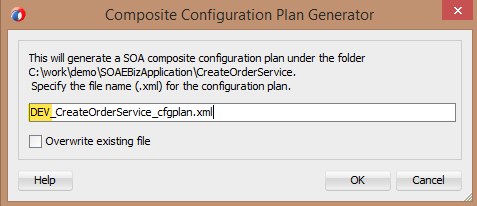
To generate the configuration plan in JDeveloper, right click on the composite.xml file. Select “Generate Config Plan” and give the plan a name. This name is often specific to an environment because each environment will have its only values to which you will need to set the URL. For example, the Dev URL might start with http://devsoa01:8001, but since the QA environment is fronted by a load balancer, the URL is http://soaqa01:80.
Adjusting the Plan
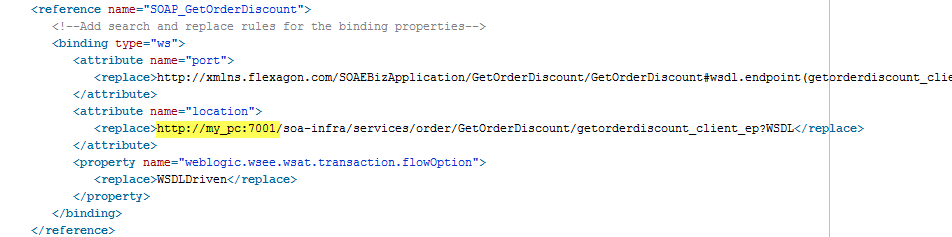
Once the plan is generated, we can open the plan and adjust it for the environment to which we are going to deploy the composite. In this case, we need to adjust the location for the reference SOAP_GetOrderDiscount. At times, you may need to handle environment specific content in your imports, services, or other parts of the composite.xml file. You can also adjust other files like JCA files or WSDLs. Note how specific this generated plan is — it has been generated specifically for the CreateOrderService composite. The section of the generated plan requiring fix up is below:
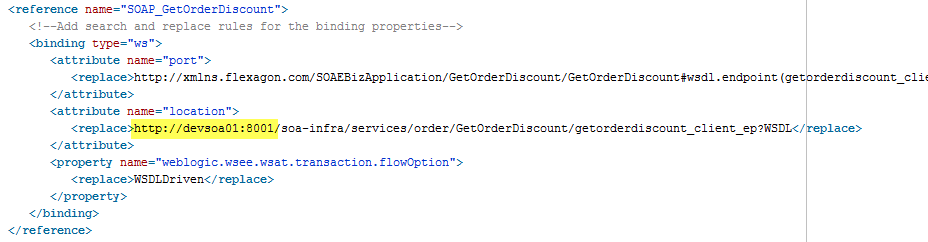
After updating the location URL, the Configuration plan looks like:
Deploying With the Configuration Plan From JDeveloper
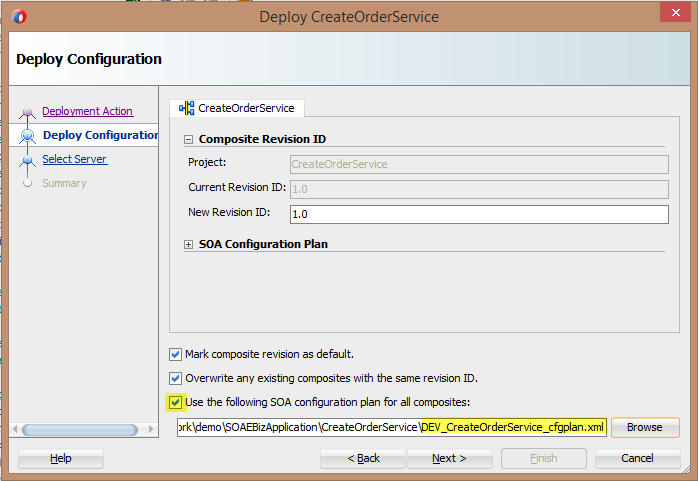
Now we are ready to deploy the composite to the development environment. When deploying from JDeveloper, select the checkbox indicating that we will use the config plan, then select the plan you would like to use. Then proceed with the remaining deployment screens. The Config plan you selected will perform the required fix up.
Using a Specific Plan With FlexDeploy
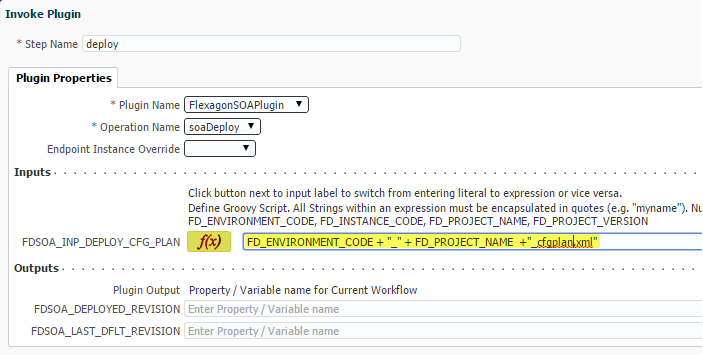
To use the configuration plan with Flexagon’s FlexDeploy, generate the plan as described above. In the SOA deploy workflow, open the soaDeploy step and configure the configuration plan. In the example below, I use the Environment Code (DEV) and the project name (CreateOrderService). The plugin will then apply this plan when you deploy from FlexDeploy.
Using Workflow Properties in a Config Plan
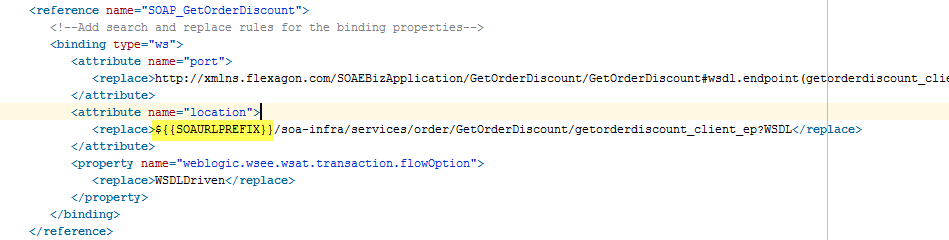
FlexDeploy provides the ability to create user-defined workflow properties that can be set based on environment. In this case, I defined a property named SOAURLPREFIX. We now only need one configuration plan for the composite. When using these workflow properties, I would change the name of the config plan to be CreateOrderService_configplan.xml (it is not specific to an environment anymore!). This property replacement will handle mapping the URL for each environment. Central administrators can manage the actual values in FlexDeploy instead of each developer setting the actual URL in the config plan, you just reference the property name.

I now update my config plan to use this property. To reference a property in your config plan use ${{…}} to delimit the property name. The updated config plan is below:
Then we can configure this property in FlexDeploy on the DEV environment for the SOA instance:

Published at DZone with permission of Rebecca Pruess. See the original article here.
Opinions expressed by DZone contributors are their own.
Comments